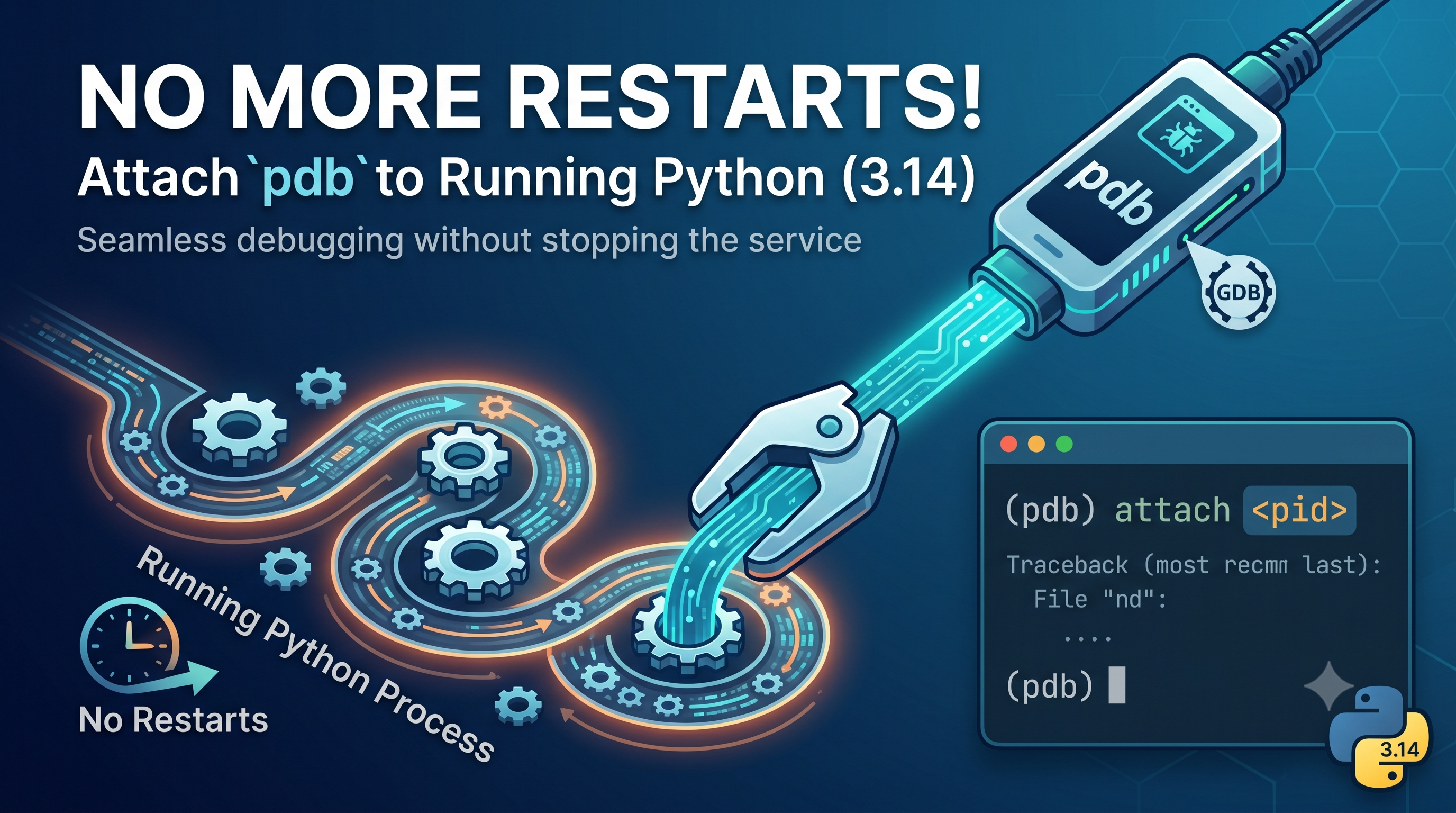
You’ve probably been here before. A Python service has been running for hours and now it’s stuck, eating memory, or just doing something weird. You want to look inside it right now and see the local variables, the call stack, and where exactly the code is.
Until recently your options were all bad:
- Add a
breakpoint()and restart the process. But a restart throws away the exact state you wanted to inspect. - Set up a third-party tool like
pdb-attachahead of time. That’s useless if you didn’t plan for this moment. - Reach for
gdband poke at CPython internals. Powerful, but painful.
Python 3.14 fixes this. You can now attach the built-in debugger to a live, unmodified process with one command. No restart, no pre-installed hooks, and zero runtime overhead when you’re not using it. This is the work of PEP 768 by Pablo Galindo Salgado, Matt Wozniski, and Ivona Stojanovic.
In this blog post, we’ll go through how to use it.
The one-liner
All you need is the target process’s PID (process ID).
python -m pdb -p <PID>That’s it. Python pauses the target process at its next safe execution point and gives you a normal interactive pdb prompt connected to the live process. From there you can inspect variables, walk the call stack, step through the code, and even change values while it runs.
There are only two requirements. The target must be running Python 3.14 or newer, and you need permission to inspect the process. That means the same user, or the right OS privileges. These are the same rules gdb -p follows.
That’s the whole feature. The rest of this post just shows it in action.
Hands-on walkthrough
Let’s try it. Copy this small script. It loops forever, does a bit of work, and sleeps in between, so we have something live to attach to.
# slow_worker.py
import time


def crunch(batch_id):
    total = 0
    for i in range(1, 1_000_000):
        total += i
    return total


def main():
    batch = 0
    while True:
        result = crunch(batch)
        print(f"batch {batch} done: result={result}")
        batch += 1
        time.sleep(3)


if __name__ == "__main__":
    main()
Step 1. Run it in one terminal:
python slow_worker.pyYou’ll see batch 0 done: ..., batch 1 done: ... printing one after another.
Step 2. Find its PID in a second terminal:
pgrep -f slow_worker.pyThis prints a number, for example 12345. You can also use ps aux | grep slow_worker and read the PID column.
Step 3. Attach pdb to it:
python -m pdb -p 12345The worker freezes at its next safe point and you get a prompt:
Attaching to process 12345
(Pdb)
Step 4. Look around. See where you are and what’s in scope:
(Pdb) bt
  ...
  /path/slow_worker.py(16)main()
-> result = crunch(batch)
  /path/slow_worker.py(7)crunch()
-> total += i

(Pdb) p batch
3

(Pdb) p i
527341
You’re looking at the actual live state of the program. The loop counter, the value i has reached inside crunch(), all of it.
Step 5. Change something live. Say you want to change a variable without stopping the program. Assign it right at the prompt, and prefix it with ! so pdb doesn’t mistake it for a command:
(Pdb) !batch = 100
(Pdb) p batch
100
Step 6. Let it go. Type c to resume the program, or q to detach the debugger. Either way your process keeps running. Attaching never killed it.
(Pdb) cBack in the first terminal, the worker carries on. You’ll notice it now prints batch 100 done: ... because we changed the counter while it was running. This is live debugging.
Common pdb commands
Once you’re at the (Pdb) prompt, these are the commands you’ll use most:
btorwhere: show the full call stack, so you know where you are.l: list the source around the current line.p exprorpp expr: print or pretty-print a variable or expression.n: run the next line and step over calls.s: step into the next call.upanddown: move between frames in the call stack.!name = value: assign a variable in the running program.interact: drop into a full interactive Python REPL in the current frame.c: continue and resume the program.q: quit the debugger and detach.
Attaching inside a Docker container
Your app usually runs in a container, not on your laptop. The flow is the same, with one extra step. Attaching needs the same permission as ptrace, and Docker drops that by default, so a plain attach fails with ptrace: Operation not permitted. Start the container with --cap-add=SYS_PTRACE, and make sure it runs Python 3.14 or newer.
docker run --cap-add=SYS_PTRACE -p 8000:8000 myappIn production the container is usually already running through Docker Compose. Add the capability there so it’s set when the container starts:
# docker-compose.yml
services:
  web:
    image: myapp
    cap_add:
      - SYS_PTRACE
Capabilities are fixed at startup, so if a container is already running without it, recreate it with docker compose up -d first.
Then open a shell in the container, find the worker process, and attach to it:
docker exec -u 0 -it <container> bash
pgrep -f gunicorn        # gunicorn for Django and Flask, or: pgrep -f uvicorn for FastAPI
python -m pdb -p <PID>
Attach to a worker, not the master. The workers are the processes that run your code. If a worker is sitting idle, send the app a request so it wakes up and the debugger can break in.
I tried this on Python 3.14 with Django and Flask under gunicorn, and FastAPI under uvicorn. In every case pdb attached to a live worker, let me inspect it, and the worker kept serving after I detached.
Is it safe?
Running code inside a live process sounds risky, but the feature grants no new privilege. To attach, you already need permission to write to another process’s memory and run code as that user. That’s the same bar as gdb. It doesn’t open a door that wasn’t already open.
Further reading: